Installation Guide
This guide walks you through installing and configuring the Platina Standard REST API on a Windows server with IIS.
Applies to: API v7.0 and later. For the legacy WCF API (v3–v6), see the Legacy WCF Installation Guide.
Prerequisites
Before you begin, make sure you have:
| Requirement | Details |
|---|---|
| Windows Server | 2016 or later with IIS enabled |
| ASP.NET Core Hosting Bundle | Download .NET 8 Hosting Bundle (required for API 8.0+) |
| SQL Server | Access to the Platina database |
| Platina Core | A working Platina installation |
| Azure AD tenant | Required for API 8.0+ (OAuth 2.0 authentication) |
⚠️ API 8.0+ no longer supports Windows authentication. You must configure Azure AD / OAuth 2.0. See Authorization Guide.
Step 1 — Install the SQL Stored Procedure
The API requires one stored procedure in the Platina database.
- Open SQL Server Management Studio and connect to the Platina database.
- Run the following script:
USE [platina]
GO

CREATE OR ALTER PROCEDURE [dbo].[pStructureObjectInfoGet]
    @propID INT
AS
    SELECT [propID], [objectID], [moduleID], [typeID]
    FROM tObjProperties
    WHERE [propID] = @propID
GO
Step 2 — Deploy the API to IIS
The API is shipped as a ZIP package containing the application files and SQL scripts.
2.1 — Extract the package
Unpack the ZIP to a folder on the server, for example:
C:\inetpub\PlatinaApi
2.2 — Create the IIS Application
- Open IIS Manager.
- Select a website (e.g. Default Web Site).
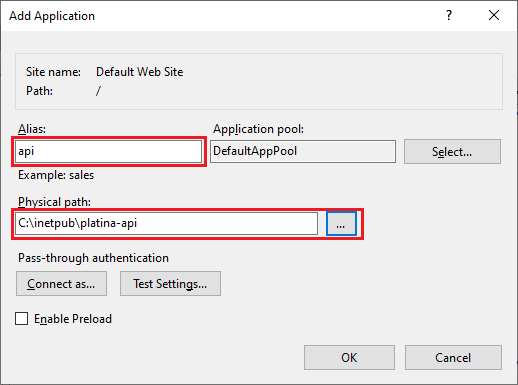
- Right-click → Add Application:
- Alias:
api - Physical path:
C:\inetpub\PlatinaApi
- Alias:
⚠️ Do not create the API as a sub-application of Platina. Platina's web.config may inject settings that conflict with the API.
2.3 — Set the Application Pool
The API runs on ASP.NET Core (out-of-process). Make sure the Application Pool is set to No Managed Code:
- In IIS Manager, click Application Pools.
- Select the pool used by the API.
- Set .NET CLR Version → No Managed Code.
Step 3 — Configure Environment Variables
The API reads its configuration from IIS environment variables. This keeps secrets out of files on disk.
3.1 — Open Configuration Editor
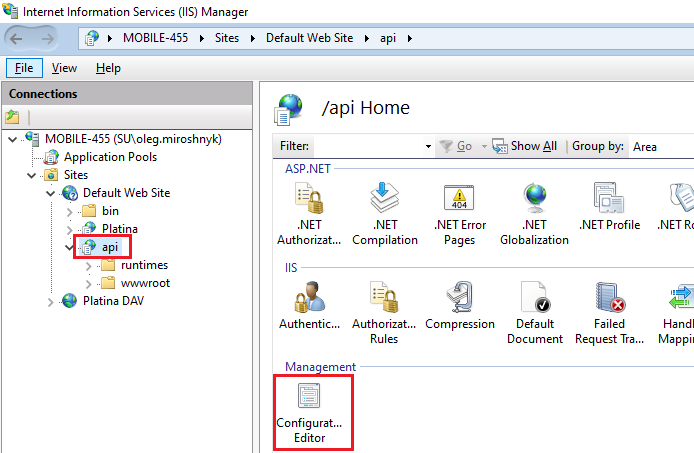
- In IIS Manager, select the API application.
- Double-click Configuration Editor.
- Navigate to
system.webServer/aspNetCore→ expand environmentVariables.
3.2 — Add the required variables
| Variable | Required | Description | Example |
|---|---|---|---|
DB_SERVER |
✅ | SQL Server instance hosting the Platina database | platina-db-01 |
DB_TRUSTED_CONNECTION |
✅ | Use Windows integrated auth for database access | true or false |
DB_USER |
If not trusted | SQL login username | platina_api |
DB_PASSWORD |
If not trusted | SQL login password | (your password) |
PLATINA_API_USERNAME |
✅ | Platina user account for the API (must exist in tUserSettings) |
DOMAIN\ApiServiceUser |
PLATINA_API_BASE_URL |
✅ | Base URL path matching the IIS alias | /api |
💡 Security tip: Use
DB_TRUSTED_CONNECTION=truewhenever possible to avoid storing database passwords in configuration.
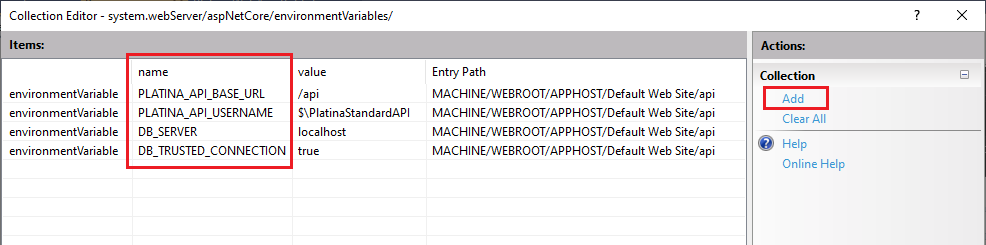
Click Apply to save.
Step 4 — Configure Authentication
API 8.0+ (OAuth 2.0 / Azure AD)
Since API 8.0, authentication is handled via Azure AD (Microsoft Entra ID) with JWT bearer tokens.
- Register an application in Azure AD — see Create App Registration.
- Edit
appsettings.jsonin the API folder:
{
  "AppRegistration": {
    "ClientId": "<your-client-id>",
    "ClientSecret": "<your-client-secret>",
    "TenantId": "<your-tenant-id>",
    "Authority": "https://login.microsoftonline.com/<your-tenant-id>/"
  }
}
- In Platina, make sure each API user has an email address on their Person card that matches their Azure AD email — see Configure Platina.
API 7.x (Windows Authentication)
For API 7.x only, enable Windows Authentication in IIS:
- Select the API application in IIS Manager.
- Double-click Authentication.
- Enable Windows Authentication, Disable Anonymous Authentication.
Step 5 — Verify the Installation
- Open a browser and navigate to:
https://<your-server>/api/swagger
You should see the Swagger UI with all available endpoints.
- Test the authorization endpoint:
GET https://<your-server>/api/v8.0/authorized
- 200 OK — Authentication is working.
- 401 Unauthorized — Check your Azure AD configuration.
- Test a data endpoint:
GET https://<your-server>/api/v8.0/diaries
You should receive a JSON array of diaries from Platina.
Troubleshooting
Common issues
| Symptom | Likely cause | Fix |
|---|---|---|
| 502.5 — Process Failure | Missing ASP.NET Core Hosting Bundle | Install the .NET 8 Hosting Bundle, then restart IIS (iisreset) |
| 500 — Database connection error | Wrong DB_SERVER or missing credentials |
Verify environment variables; test SQL connectivity from the server |
| 401 — Unauthorized | Azure AD misconfiguration | Verify appsettings.json values match your App Registration; ensure the email claim is configured |
| 404 — Endpoint not found | Wrong base URL | Check PLATINA_API_BASE_URL matches the IIS application alias |
| Stored procedure errors | pStructureObjectInfoGet not installed |
Run the SQL script from Step 1 |
Check the logs
The API logs to stdout by default. To capture logs:
- In the API folder, open
web.config. - Set
stdoutLogEnabled="true"and verifystdoutLogFilepoints to a writable path. - Restart the application and check the log files.
Next Steps
- Authorization Guide — Detailed Azure AD setup with screenshots
- Compatibility & Prerequisites — Version matrix and breaking changes
- API Samples — Common integration scenarios with code examples
- Swagger — Interactive API documentation